Workshop
Bambu Studio vs xTool software: what the machine makers' own apps can do
What Bambu Studio, Bambu Handy, Bambu Suite, Farm Manager, xTool Studio and xTool Creative Space do, and where an AI-made STL, DXF or SVG fits in.
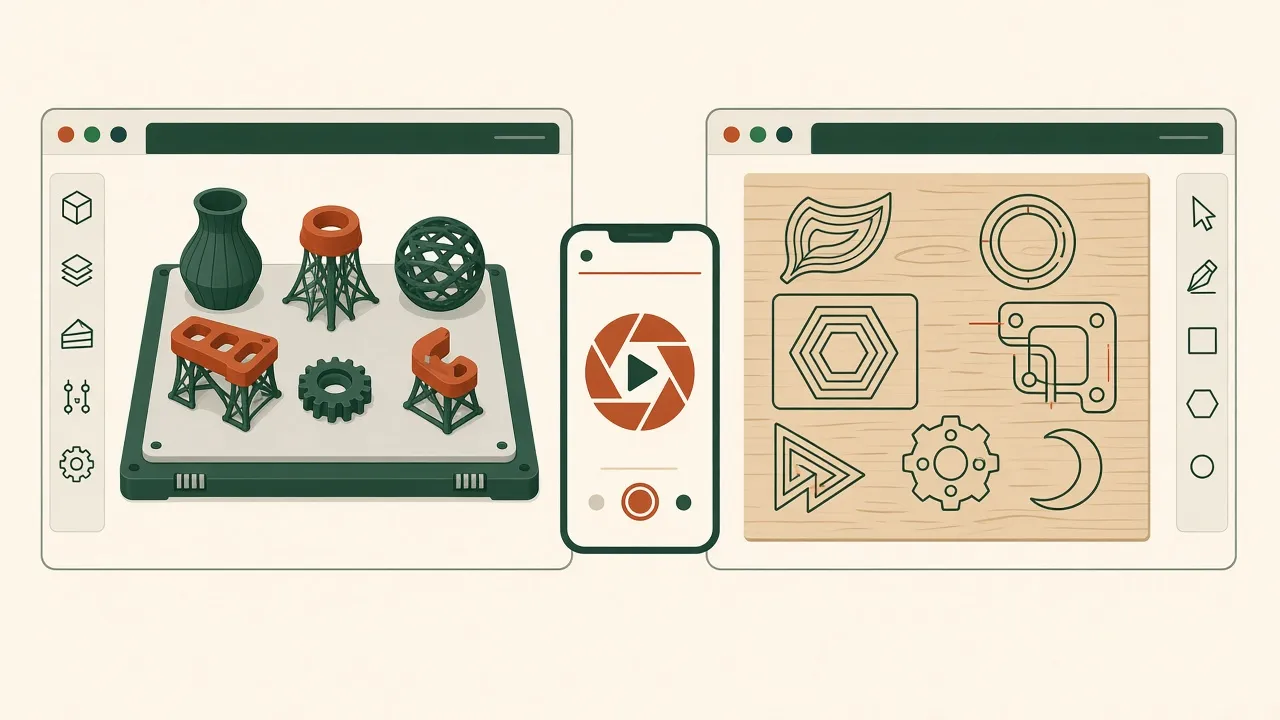
Sources: official Bambu Lab and xTool product pages, the Bambu Lab Wiki, and the xTool Support Center, all checked November 5, 2026. Bambu Studio’s latest GitHub release at that date was tagged v02.09.01.70; OrcaSlicer’s latest release was v2.4.2. Short quotes only. None of the companies named reviewed or endorsed this article.
AI tools can now draft a part from a sentence. But the file still has to go through the machine maker’s own software before anything gets printed or cut. For most hobby machines that means Bambu Studio for a Bambu Lab 3D printer, or xTool Studio / xTool Creative Space (XCS) for an xTool laser. This guide explains what each one does, where an AI-generated STL, DXF or SVG enters, and when a third-party app makes more sense. If you are still choosing a machine, see our printers page.
The short version
- Bambu Studio is a slicer: it prepares 3D models for printing, places them on plates, adds supports, and sends the job to the printer.
- Bambu Handy is the phone app: remote control, live view, and the MakerWorld model library.
- Bambu Suite is Bambu Lab’s software for laser cutting, blade cutting and pen drawing.
- Bambu Farm Manager manages many Bambu printers on a local network.
- xTool Studio / XCS is a 2D design and job app for xTool lasers: vector editing, image tracing, material presets and camera positioning.
- Your AI tool makes the geometry. The maker’s software decides how the machine actually runs it.
Bambu Studio
Bambu Studio is described by Bambu Lab as “an open-source, cutting-edge, feature-rich slicing software.” It runs on Windows 10 (64-bit) and newer and macOS 10.15 and newer, with a Linux build on GitHub.
Project-based workflow
Bambu Studio is built around the 3MF project format. Bambu Lab lists multi-plate support, a project resource manager, and an assembly/part view. One project file can hold several plates, each with its own objects and settings.
Auto-arrange
The Arrange All Objects tool places models on the build plate automatically. Shortcut A arranges everything and Shift+A arranges the selected plate. According to the Bambu Lab Wiki:
- New plates can be added when the models do not fit.
- Options include spacing, auto-rotate (it tries 0°, 45°, 90° and 135°), mixing materials on one plate, and aligning to the Y axis.
- A locked plate is left alone.
- The packing uses the open-source libnest2d library.
Supports
The support documentation lists normal and tree supports, each in auto or manual mode. Tree supports come in styles such as Tree Slim, Tree Strong, Tree Organic and Tree Hybrid, the current default. Manual modes only place supports where you paint support enforcers. Settings include branch distance, diameter, angle, interface pattern, and max bridge length.
Print profiles and multi-colour
Bambu Lab says Bambu Studio has fine-tuned cooling per filament type and “auto slow down” for overhang walls. For multi-colour printing, each filament is auto-mapped to an AMS slot before the print starts.
Remote monitoring
From the desktop app you can send jobs over WAN or LAN, and monitor and control the printer. If you own several printers, you can switch between them in a device list.
STEP import
Bambu Studio accepts STEP files. Bambu Lab notes that STEP “brings more effective information” than STL. It lets more extrusion paths be generated as arcs, and keeps the assembly relationship between parts.
MakerWorld integration
The Bambu Studio 1.7.6 release note added MakerWorld support. The home page shows recommended MakerWorld models, and a model page on MakerWorld has an “Open in Bambu Studio” button that imports the project to start printing.
Bambu Handy
Bambu Handy is Bambu Lab’s mobile app. Its official page lists:
- control of printers “anywhere”;
- a live view during printing, with the option to change settings;
- automatic diagnosis through HMS;
- automatic timelapse videos;
- a connection to the MakerWorld model library.
Bambu Suite: lasers and cutters
Bambu Suite is Bambu Lab’s software for “laser cutting, blade cutting, pen drawing and so much more.” Its features include:
- one job that combines engraving, cutting and pen plotting, with automatic pauses and tool-change prompts;
- Live Auto Arrangement, which uses real-time images from the BirdsEye camera to arrange the job and save material;
- batch engraving onto similar-shaped plates found by computer vision;
- curved-surface engraving from a 3D-scanned point cloud, with Z-height adjustment;
- automatic parameter selection when the material carries an official CodeSync QR code.
It runs on Windows 10 (64-bit) and newer and macOS 11.7 and newer.
Bambu Farm Manager
The Bambu Farm Manager guide describes a suite for managing multiple printers. It has a Server, which connects to printers on the local network, and a Client for team members. Features include:
- real-time status;
- batch operations;
- firmware upgrades;
- a job queue;
- multi-user management.
Bambu Lab states that commands and model files go to printers “only within your local network through an encrypted channel.” The server needs 64-bit Windows 10 or newer on x86. The guide lists minimum firmware versions per printer model.
xTool Studio and xTool Creative Space (XCS)
xTool’s software page now presents xTool Studio Desktop. It lists:
- AI image tools: Smart Adjust, Auto Enhance, Image Redraw, AI Cutout and Creative Expand;
- 10,000+ templates and elements;
- rotary engraving preview and “true result preview”;
- smart nesting, batch fill and design generators;
- multi-device management and cloud storage.
The page says the desktop app has no mobile version at present. Many of xTool’s support articles still document XCS V2.1 or later, and the features below come from those.
Vector editing and imports
The XCS desktop overview lists text, lines, rectangles, circles, a vector pen, shapes, and applications such as grid arrays, circular arrays and material test arrays. You can set an object’s position by exact x and y coordinates, with (0, 0) at the upper-left corner. XCS imports JPG, JPEG, GIF, PNG, BMP, SVG, DXF and WEBP files, can export to SVG, and has an optional “Precise DXF file parsing” setting. xTool says this setting reduces missing or deformed lines but uses more memory.
Image-to-vector trace
The Trace function turns a bitmap into vector paths. It has two modes:
- Auto-trace follows the edges of colour blocks.
- Center tracing follows the centre line, for line drawings.
Settings include a fuzziness threshold (0–255, default 100), denoising (0–100, default 50) and smoothness (0–1, default 0.8), plus “Layering by color”. xTool notes that blurred outlines and dense, vibrant colours trace poorly.
Material settings
Choosing a material in XCS fills in the laser parameters automatically. The embedded Material EasySet Library offers recommended settings filtered by machine, module and material. It includes xTool’s own materials and parameters shared by other users. On the F1 Ultra guide, xTool says the presets work best with xTool’s own materials. For third-party stock, it recommends running a material test array first.
Camera positioning
On machines with a camera, XCS can photograph the work area and use that photo as the canvas background, so you can place designs on the real material. The canvas documentation covers showing or hiding this background. xTool recommends setting the laser focus before you capture it, for accuracy.
Comparison table
| Bambu Studio | Bambu Handy | Bambu Suite | xTool Studio / XCS | OrcaSlicer | LightBurn | |
|---|---|---|---|---|---|---|
| Machine type | Bambu 3D printers | Bambu printers (phone) | Bambu laser/cutting | xTool lasers | Many FDM printers | Hundreds of lasers |
| Main job | Slice, plate, support, send | Monitor, control, MakerWorld | Design, arrange, engrave, cut | Design, trace, set material, run | Slice and calibrate | Design, layout, laser control |
| AI-file input | STL, STEP, 3MF | Prints models from MakerWorld | Laser and cutting jobs | SVG, DXF, images | 3D models | Vector and image files |
| Auto-arrange | Yes (libnest2d) | n/a | Live, camera-based | Smart nesting | Yes | See docs |
| Camera use | Monitoring | Live view | BirdsEye camera arrangement | Background capture for positioning | Network monitoring (Klipper, PrusaLink, OctoPrint) | See docs |
| Source / licence | Open source | App | Free download | Free download | AGPL-3.0, free | Paid perpetual, 30-day trial |
“See docs” means we did not verify the detail on an official page for this article.
Where an AI-generated file fits
3D printing: STL or STEP into Bambu Studio
- Generate the part with a chatbot or a text-to-CAD tool. Our guide on how to make a 3D-printable part with AI covers the prompt and checks, and AI CAD tools vs ChatGPT compares the tools.
- Export STEP if you can, or STL or 3MF if not.
- Import into Bambu Studio and check the scale. A part ten times too big or small usually means a unit mismatch.
- Orient the part for strength. Let auto-arrange place copies, and choose a support style.
- Slice, read the preview layer by layer, and print one test piece before a batch.
The AI does not know your filament, nozzle, or which way the part will be loaded. The slicer settings and your test print do.
Laser cutting: DXF or SVG into xTool software
- Ask the AI for a closed-path DXF or SVG in millimetres, with cut and engrave lines kept separate. Our AI to DXF guide has the full checklist.
- Import into XCS or xTool Studio, and enable precise DXF parsing if lines come in broken.
- Capture the camera background and place the design on the real sheet.
- Pick the material preset, or run a test array for third-party stock.
- Cut one piece and check the fit before you nest a full sheet.
If you only have a sketch or logo bitmap, the Trace function can make it into vectors. Check the result node by node, because a trace is not a dimensioned drawing.
Third-party alternatives
- OrcaSlicer: a free, open-source (AGPL-3.0) slicer for FDM printers on Windows, macOS and Linux. It has built-in calibration tests and profiles for Bambu Lab, Prusa, Creality, Voron and more. It can send jobs to printers running Klipper, PrusaLink or OctoPrint. Its site says “No account, no telemetry”.
- LightBurn: design, layout and laser-control software that supports “hundreds of lasers”. Licences are perpetual with one year of updates, and there is a 30-day free trial. It runs natively on Windows 10+ and macOS 13+. Check that your exact laser model is supported.
Limitations
- Features change with every release. Check the release notes for your version.
- A material preset is a starting point, not a guarantee. Test on scrap.
- Cloud and remote features send data off your network; read each maker’s terms. Farm Manager is the LAN-only option Bambu Lab describes.
- None of this software checks whether an AI-designed part is safe for its job. Keep load-bearing and heat-exposed parts on rated hardware.
FAQ
Can I open an AI-generated STL in Bambu Studio?
Yes. Bambu Studio is a slicer, so it takes a mesh or a STEP file and turns it into a print job. Its own page notes that STEP keeps more information than STL, so prefer STEP if your AI tool can export it.
Can xTool software import a DXF or SVG from an AI tool?
Yes. xTool's XCS documentation lists JPG, JPEG, GIF, PNG, BMP, SVG, DXF and WEBP as importable files, and it has an optional 'Precise DXF file parsing' setting.
Is xTool Studio the same as xTool Creative Space?
xTool's software page now presents xTool Studio Desktop, while many support articles still document xTool Creative Space (XCS) V2.1 or later. Check which one your machine's support page recommends.
Do I have to use the maker's software?
No. OrcaSlicer is a free, open-source slicer with profiles for Bambu Lab and other printers, and LightBurn supports hundreds of lasers. Check compatibility with your exact model first.
Is this sponsored?
No. Bambu Lab, xTool, OrcaSlicer and LightBurn have not reviewed, paid for, or endorsed this article.