Workshop
AI CAD tools vs ChatGPT: Confetti, Windchime and others compared with chatbots
Specialist AI CAD tools like Confetti and Windchime versus ChatGPT, Claude, Grok and Gemini writing OpenSCAD: formats, accuracy, pricing, and pros and cons.
Sources: each tool’s own public pages, checked November 4, 2026, plus independent write-ups linked inline. Prices are quoted only where a vendor publishes them, as of that date. Short quotes only. None of the companies named have reviewed or endorsed this article; screenshots are of public landing pages, cropped, and used for commentary.
There are two ways to get an AI to design a physical part in 2026. You can ask a general chatbot (ChatGPT, Claude, Grok or Gemini) to write CAD code, or you can use a specialist AI CAD tool built only for making things, such as Confetti, Windchime, Kimi 3D Make, or Zoo. This guide compares the two approaches head to head. If you just want a ranked list of text-to-CAD tools by output format, see our best text-to-CAD tools page instead.
The short answer
- Use a chatbot when the part is simple and prismatic (a bracket, spacer, clip or box), you are comfortable running OpenSCAD or Python, and you want it free and fully transparent.
- Use a specialist tool when you want a rendered model, checks, and a guided brief without touching code, or when the project includes off-the-shelf electronics, a parts list, and someone to quote the print.
- Use a B-rep tool or CadQuery when the file has to leave your desk as STEP for a machinist or another CAD program.
How the two approaches actually work
General chatbot writing CAD code
You describe the part with dimensions. The chatbot replies with code, usually OpenSCAD or a Python library such as CadQuery. You paste that into the CAD program, render it, export STL, 3MF or DXF, and send errors or measurements back in the chat. Our step-by-step guide covers this loop in detail.
The key limitation, as a FitPrint guide puts it, is that language models are “surprisingly good at OpenSCAD syntax and surprisingly bad at geometry” because they never see what their code produces. Typical failures it lists include floating features, holes with no clearance, and parts rotated the wrong way.
Specialist AI CAD tool
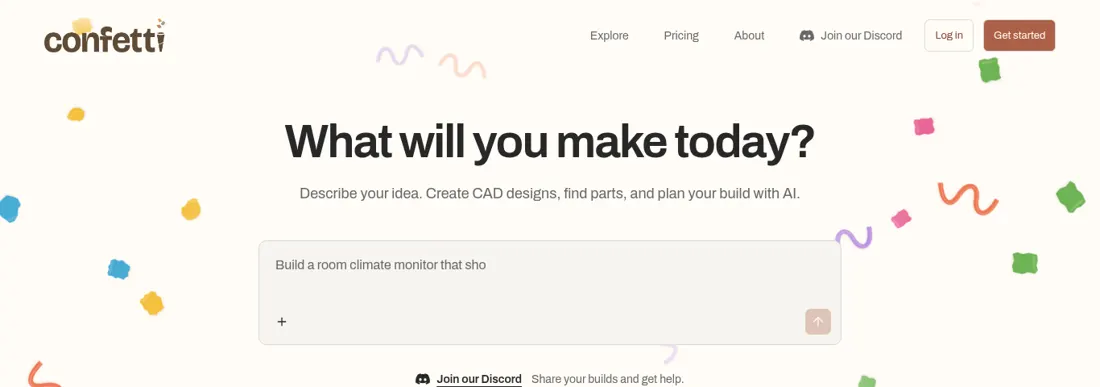
A specialist tool wraps a model in a workspace that renders and checks geometry for you. Confetti, for example, says on its how it works page that you describe the object, it “asks questions when needed and proposes a build brief” for you to approve, then delivers files you can inspect and revise as saved versions.
Comparison table
| Chatbot + OpenSCAD | Chatbot + CadQuery | Confetti | Windchime | Kimi 3D Make | Zoo (Zookeeper) | Meshy | |
|---|---|---|---|---|---|---|---|
| Main output | STL, 3MF, DXF, SVG | STEP and mesh | STEP or STL, CAD source, parts plan, instructions | Printable CAD | STL, 3MF, OBJ, STEP, GLB | Editable CAD, STEP | FBX, OBJ, USDZ, GLB, STL, BLEND |
| Editable / parametric | Yes, the code is the model | Yes, Python code | Revisions by chat; CAD source on some projects | By chat | By chat | Yes, KCL code | Mesh only |
| Renders for you | No | No | Yes | Yes | Yes | Yes | Yes |
| Electronics | Only what you write | Only what you write | Supported projects, firmware; no custom PCB | Not stated | Not stated | Not stated | No |
| Manufacturing handoff | You | You | Printing quotes on supported projects | You | You | You | Separate service |
| Published price (Nov 4, 2026) | Free software | Free software | Free; Studio $79/mo; Pro $199/mo | See site | See site | See site | Free tier, 100 credits/month |
| Best for | Simple, exact parts | Parts that need STEP | Gadgets with a parts list | Quick printable parts | Text or sketch to model | Engineering CAD | Figurines, art, games |
Feature lists come from each vendor’s own pages; “not stated” means we did not find it published, not that it is impossible. Check current details before you choose.
Pros and cons: general chatbots
ChatGPT, Claude, Grok and Gemini
Pros
- Cheap or free. OpenSCAD and CadQuery are free; you may already pay for a chatbot.
- Fully transparent. The code is the design. Every dimension can be a named variable you change yourself.
- Flexible output. OpenSCAD exports STL, 3MF and 2D DXF or SVG; CadQuery can export STEP.
- Good at explaining. You can ask why a wall is 2 mm, or to add a clearance, and learn CAD concepts along the way.
Cons
- Blind to geometry. The model cannot see its render, so mistakes surface only when you compile it.
- More steps. Copy, paste, render, export, and repeat. Learning curve: moderate, because you need to run a CAD program.
- No parts plan or ordering. You source components and pick a printer or shop yourself.
- Privacy depends on your plan. Check each provider’s data and training settings before pasting confidential designs.
Pros and cons: specialist tools
Confetti
Pros
- End-to-end. Per its how it works page, it can deliver STEP or STL files, editable CAD source, a parts plan, build instructions and, for supported electronics, firmware.
- Guided brief. It asks questions and proposes a brief before building, which reduces wasted iterations.
- Manufacturing handoff. Supported projects can get printing quotes and ordering options through Confetti.
- Clear credit pricing. Its pricing page lists a project’s first standard build at 25 credits and a small resize at 5 credits.
- Private by default. Signed-in projects stay private unless you publish them.
Cons
- Costs scale with revisions. Credits are needed for builds and changes; physical parts and shipping are separate.
- No custom PCBs. Its own FAQ says custom PCB design and hardware certification are not supported. For boards, see our AI PCB guide.
- Research data sharing on Free. The Free plan lists “research data sharing”; opting out is listed on paid plans.
- Still needs testing. A rendered model is not proof of fit or strength; print a test piece.
Windchime
Pros
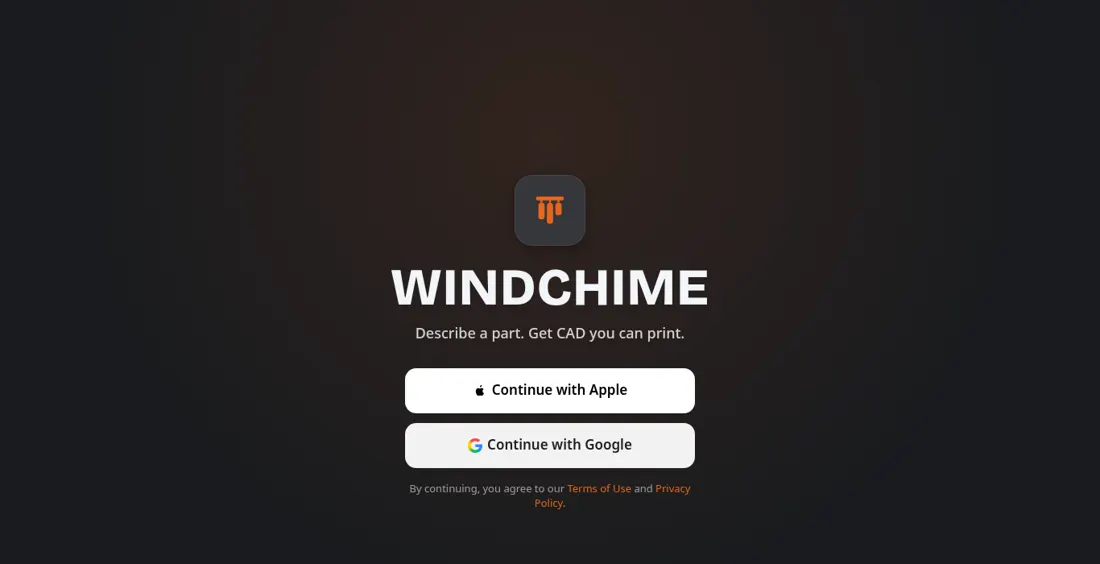
- Narrow focus. Its landing page promise is simple: “Describe a part. Get CAD you can print.”
- No code. You work in the browser after signing in with Apple or Google.
Cons
- Sign-in first. There is little to try before creating an account.
- Less published detail. We did not find a public pricing or export list on the landing page; check the site. See our Windchime write-up.
Kimi 3D Make
Pros
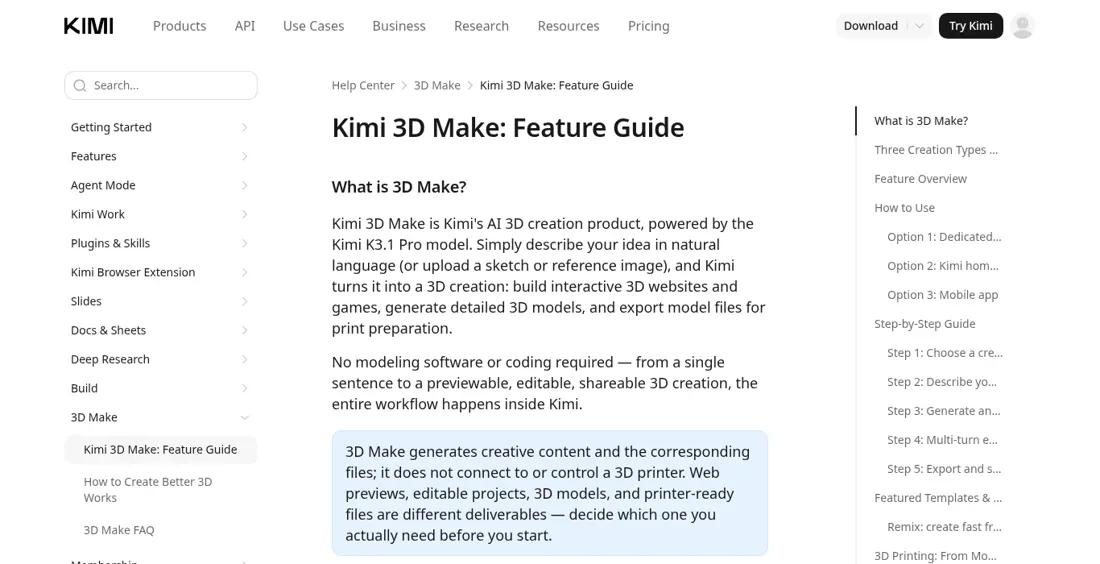
- Many formats. Per Kimi’s help center, it exports STL, 3MF, OBJ, STEP and GLB.
- Text or sketch input. You can start from a sketch or reference image.
Cons
- No printer control. Kimi states it “does not connect to or control a 3D printer.”
- Accuracy varies. A 36Kr test reported via panda3dp found roughly 1 mm of dimensional error, so measure before relying on a fit.
Zoo (Zookeeper and Text-to-CAD)
We skipped a screenshot because Zoo’s page showed a cookie consent overlay.
Pros
- Engineering-grade CAD. Per Zoo’s page, its conversational agent Zookeeper creates “fully editable 3D models” in Zoo Design Studio, built on its own geometry engine.
- Code you can read. Models are described in Zoo’s KCL language and can export STEP.
Cons
- More of a CAD program. It is aimed at engineers; the learning curve is higher than a chat-only tool.
- Prompting matters. Zoo’s prompting tips recommend including dimensions.
Meshy
We skipped a screenshot because the homepage returned an error in our headless browser.
Pros
- Fast organic shapes. Text-to-3D and image-to-3D for figurines, props and art; exports include STL per its pricing FAQ.
- Clear licence terms. Free-plan outputs are licensed CC BY 4.0; paid-plan users own their assets, per the same page.
Cons
- Meshes, not CAD. Not suited to parts with exact holes and fits.
- Credits. The free tier is 100 credits a month.
Accuracy: what to expect from either route
Neither route guarantees a fit. With a chatbot, accuracy depends on whether the code is right and whether you checked it. With a specialist tool, a renderer and checks catch more problems, but published tests still show millimetre-level errors. The practical rule is the same: give dimensions in millimetres, measure the exported file, and print a thin test slice first.
Editability and file formats
STL and 3MF are meshes for printing. STEP keeps real surfaces and is what shops and other CAD programs want; DXF is for laser and sheet-metal cutting (see AI to DXF); Gerber is for PCBs, which none of the 3D tools here design. If you might need STEP later, choose CadQuery, Zoo, Kimi 3D Make, or a Confetti project that delivers it.
Which should you use?
- First part, tight budget: a chatbot plus OpenSCAD.
- Gadget with a microcontroller and a case: Confetti for the parts plan and enclosure.
- Quick printable household part, no code: Windchime or another browser tool.
- Part going to a machinist: CadQuery via a chatbot, or Zoo.
- A figurine or game asset: Meshy.
Whatever you pick, start small, keep safety-critical parts out of AI CAD, and read the quote before anything is ordered.
FAQ
Can ChatGPT design a 3D-printable part?
Yes, indirectly. ChatGPT, Claude, Grok or Gemini can write OpenSCAD or CadQuery code that you render and export to STL or 3MF. The chatbot does not see the result, so you must render, measure and feed errors back.
What does a specialist tool like Confetti add over a chatbot?
Per its own pages, Confetti proposes a build brief, delivers STEP or STL files, editable CAD source, a parts plan, build instructions and, for supported electronics, firmware, and can offer printing quotes for supported projects. A chatbot gives you code and text.
Which route gives a STEP file?
OpenSCAD does not export STEP. A chatbot writing CadQuery code, Zoo, Kimi 3D Make, or Confetti (for some projects) can produce STEP, which machine shops and CAD programs can edit.
Are these tools accurate enough to print without checking?
No. Measure the file, print a test piece, and keep load-bearing or safety parts on rated hardware.
Is this comparison sponsored?
No. None of the companies named reviewed, paid for, or endorsed this article. Screenshots are of public pages and are used for commentary.